Showing posts with label Tutorial. Show all posts

Saturday, February 25, 2017

Make a Wish!

Hi crafty friends! Kelly here to share a new layout using The Party On Cut File.


In Cricut Design Space I resized the "Make A Wish" sentiment from The Party On Cut File to approximately 13.5". Now if you are familiar with DS, then you know the largest image you can cut on a 12x12 cutting mat is 11.5". But I wanted my sentiment to fill the entire background and 11.5" just wasn't large enough. I continued to the cutting mat with my large 13.5" sentiment and repositioned the cut file by rotating it on the cut screen. I made sure that the cut file was placed within the 12" on the cutting mat and then sent the image to the machine. This worked perfectly! I was able to use my 12" cutting mat but cut the image at 13.5".


I cut the sentiment on both white and black cardstock. I then used the white cardstock to create a shadow effect behind the black cardstock. Next I backed the cut file with a pattern paper from the Bella Blvd-Alex Collection and added hand stitching around all of the letters. I then added 2 photos to my layout from my son's birthday along with embellishments & ephemera from Crate Paper-Cool Kid Collection and the Bella Blvd-Alex Collection.


I love enlarging cut files on my layouts. It always helps the design come together quickly because it helps fill the page.


I recorded a process video that shows how this layout came together. It also includes a Cricut Design Space tutorial showing you exactly how I cut this image in DS.


Thanks for joining me today and remember to head to The Cut Shoppe Etsy Store to check out all of the cut files!


Monday, August 25, 2014

Photo Bomb!! (a tutorial)

Good Morning!!

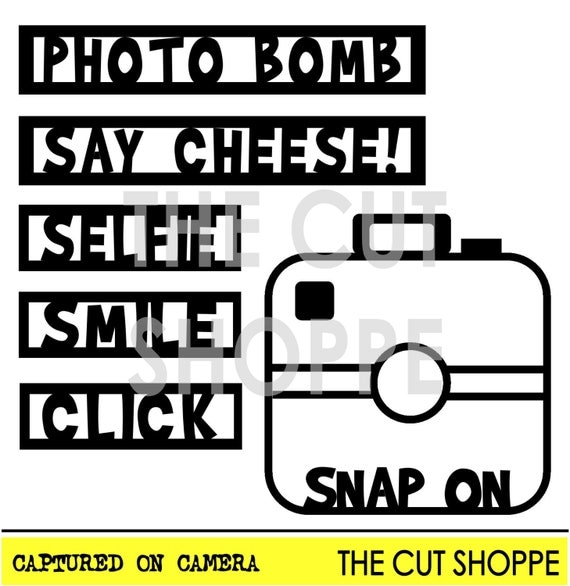
Sarah here to show you a layout I made using the Captured on Camera cut file as a background! 


 To do this I released the compound path by right clicking on the selected file and selecting "release compound path", and chose the files I wanted to use.


Once I had deleted the images I didn't want to cut, I removed the outline of the three phrases I wanted to use (that will make is so it leaves the words as a part of the paper once it's cut and doesn't cut the whole thing out.), then I grouped each individual image back together by right clicking on them and selecting the "group" option. This will keep all the lines together in the cut file so when you move it, it's all one shape still!


After that, it's just a matter of moving the phrases where you want them to be on your layout! I love the Cameo because it's a 12x12 cutting area so I know that the way I've arranged my files on the screen is exactly how it's going to cut!


Once I cut it, I backed it with some fun bright summery paper from Webster's Pages and went around the words with a black pen to make them stand out even more!


Here's some close ups:


This is the cut file I used on this layout. So in love with it! ;)

Don't forget to play along with our August Cut it Out Challenge!

Thanks for stopping by!